
Image Contrast Adjuster
Bring out the difference between light and dark areas, or soften a photo that feels too harsh. Upload your image, adjust contrast in the editor, and compare the preview before saving.
Choose a photo
Make light and dark tones stand out.
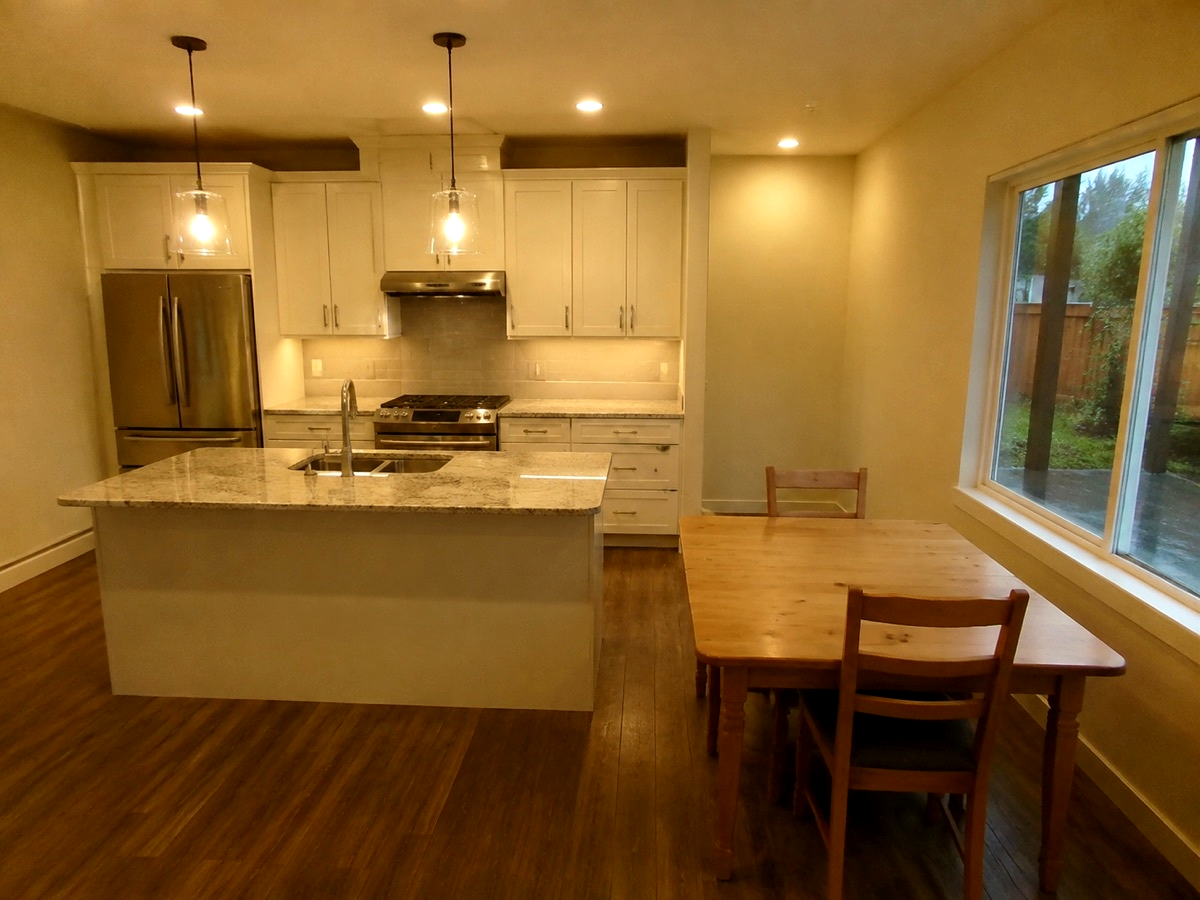
More depth in a kitchen photo
A dim kitchen may look flat even when its furnishings are visible. A modest increase separates cabinets from walls and gives furniture edges more presence. Watch the window area: pushing further can turn light surfaces into featureless white.
Find the contrast your photo needs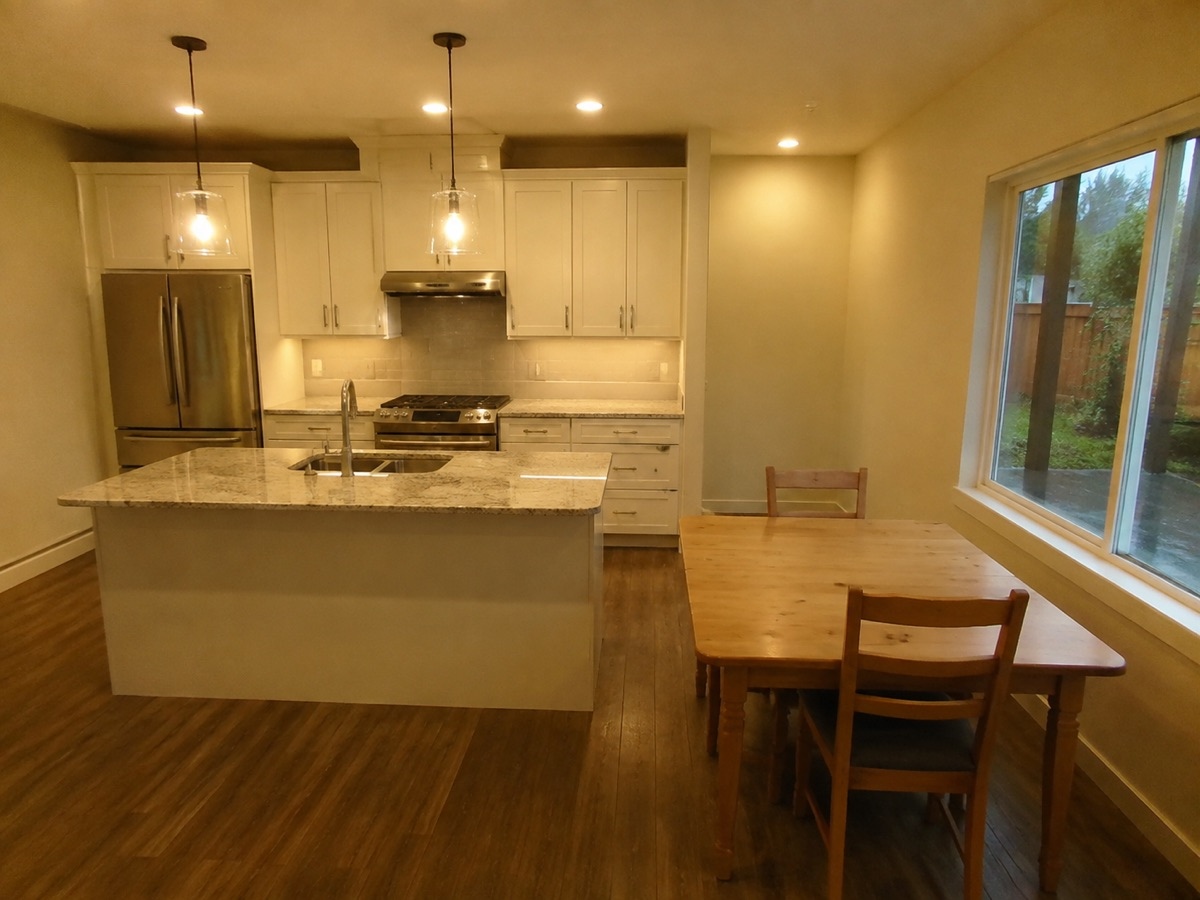
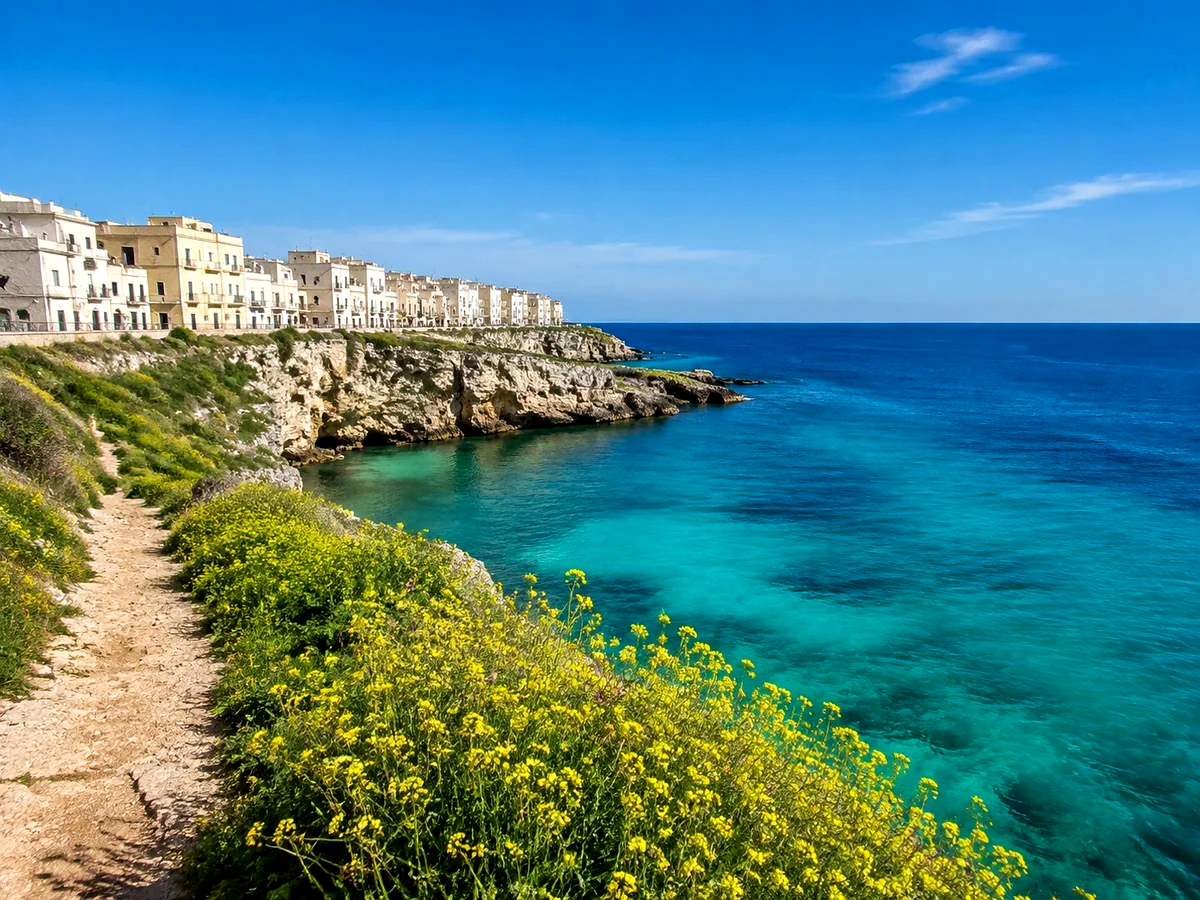
Stronger separation along the coast
Sea, sky and rocks often sit close together in a hazy coastal photograph. Raising contrast can distinguish these existing bands and deepen the shoreline. It does not remove atmospheric haze or invent sharp texture in distant cliffs.
Find the contrast your photo needs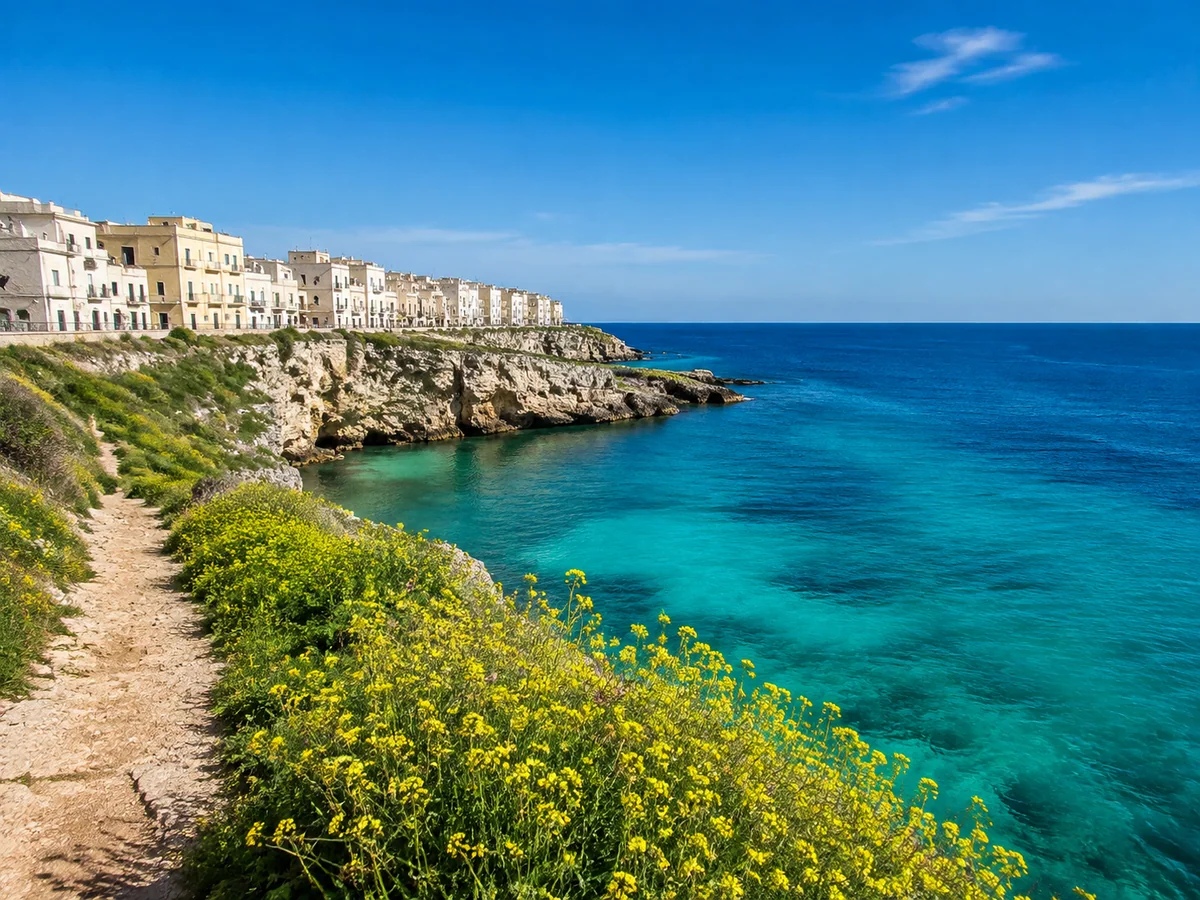
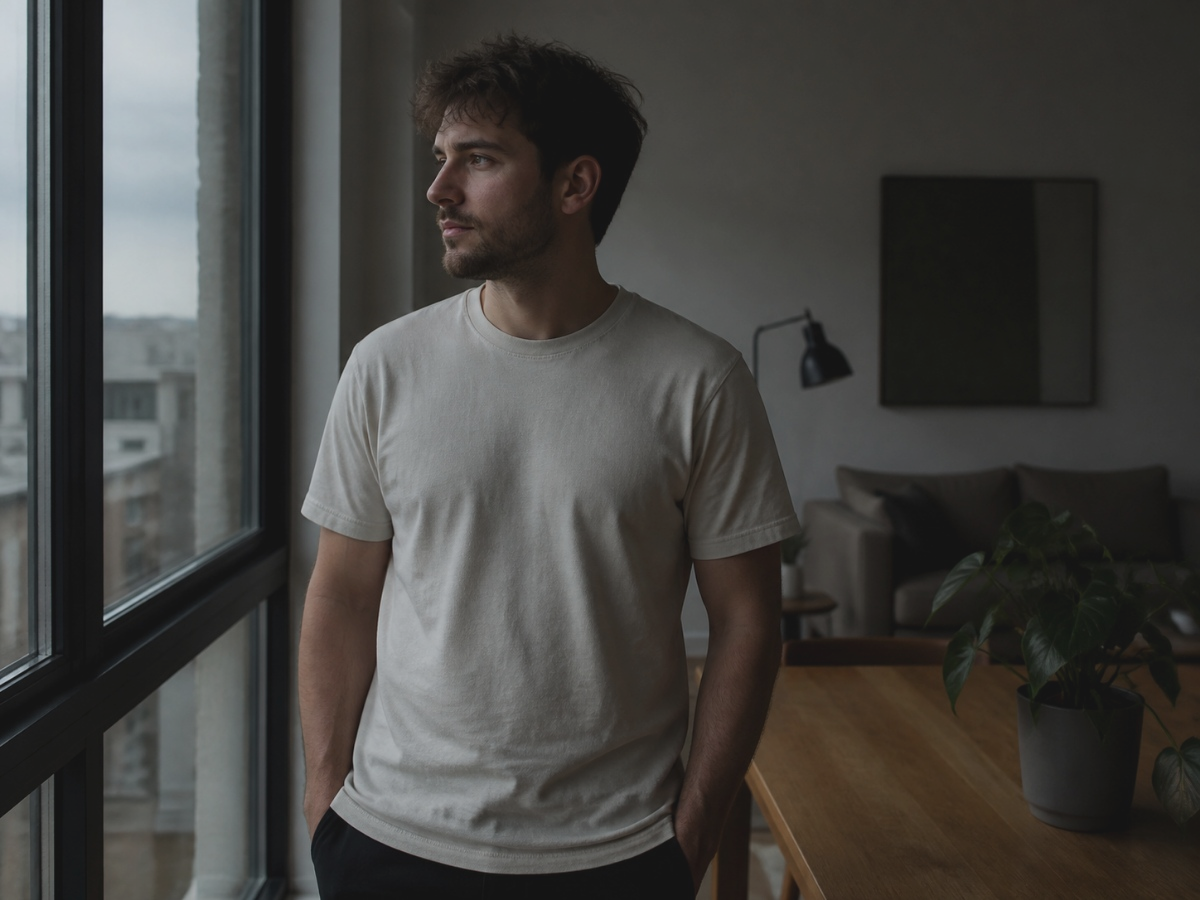
Softer contrast in a backlit portrait
Harsh backlighting can put bright hair beside dark clothing. Moving the slider below zero narrows that gap for a gentler portrait. Shadows become lighter, but pixels that were already completely black or white still contain no recoverable detail.
Find the contrast your photo needs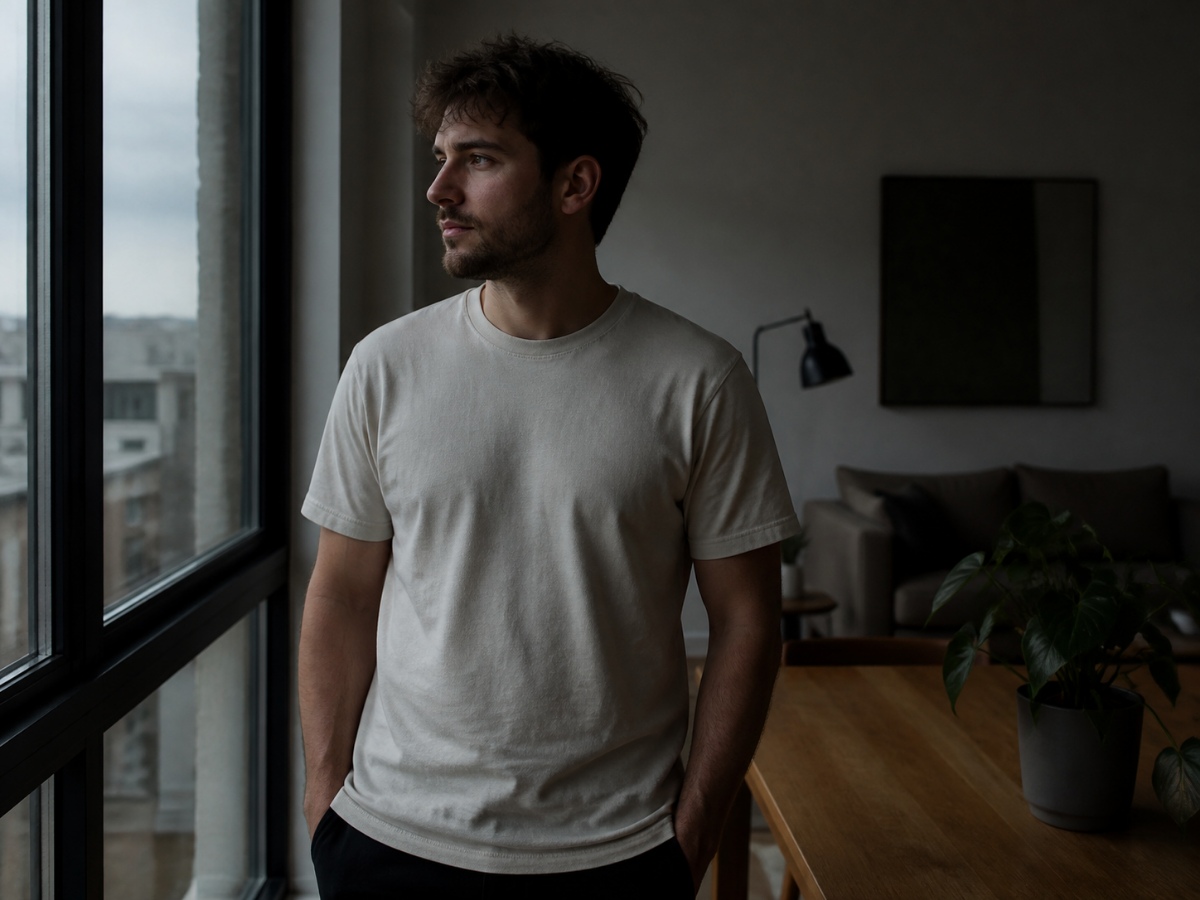
How to use this tool
Choose a photo
Choose a photo. It will upload and open the matching controls in the editor.
Find the contrast your photo needs
Increase contrast to separate light and dark tones, or reduce it to soften a harsh photo. Brightness changes how light the photo looks overall; contrast changes the difference between tones. Check highlights and shadows before saving.
Download
Preview the edit, apply it, then download from the editor.