
Remove Objects From Photos Online: A Practical AI Cleanup Guide
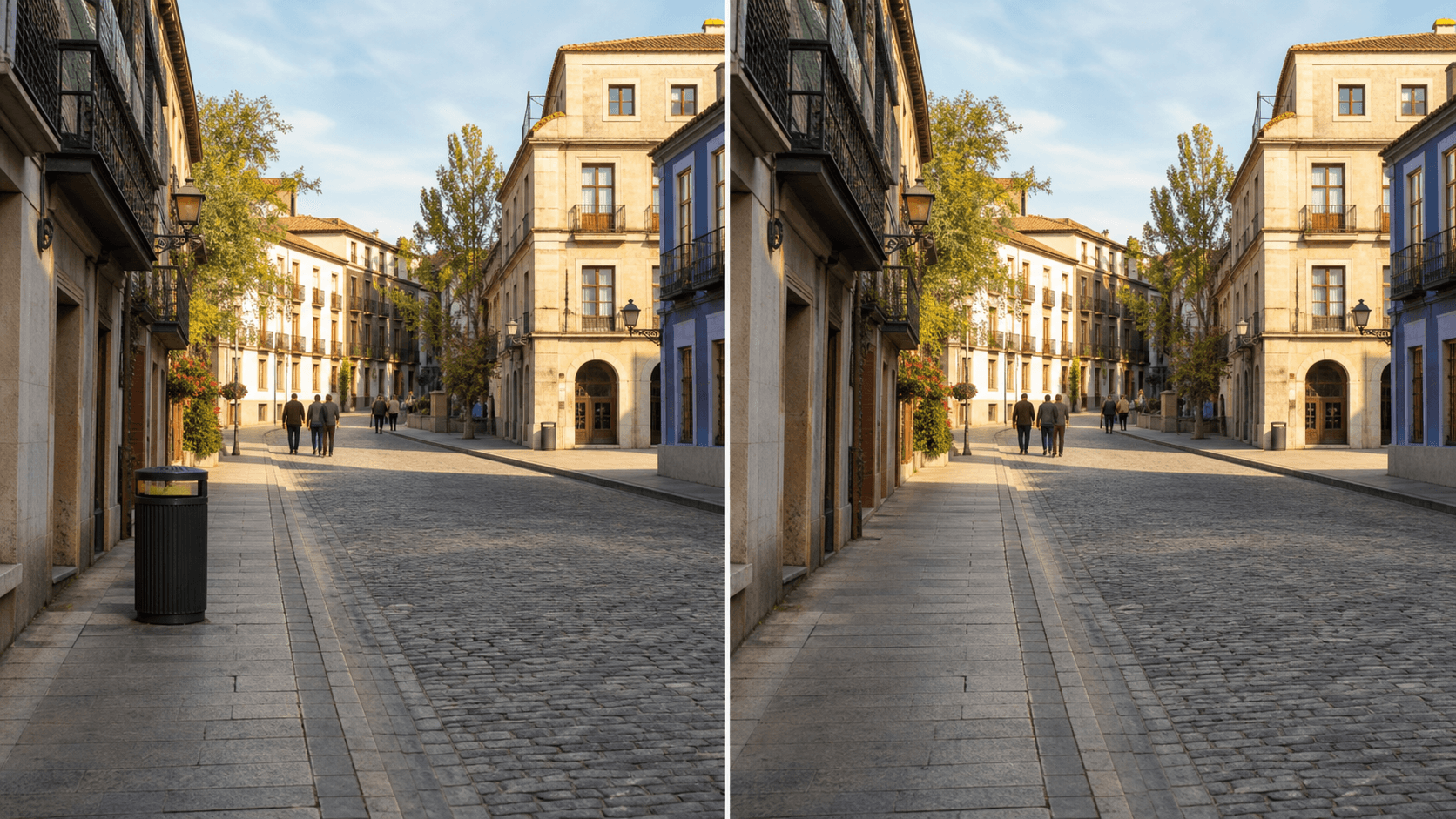
To remove objects from photos online, upload an image you own or have permission to edit, select the unwanted item (like a wire, sign, sticker, trash, or clutter), and let an AI cleanup tool rebuild the missing background. A good object-removal result looks like the original scene, just cleaner.
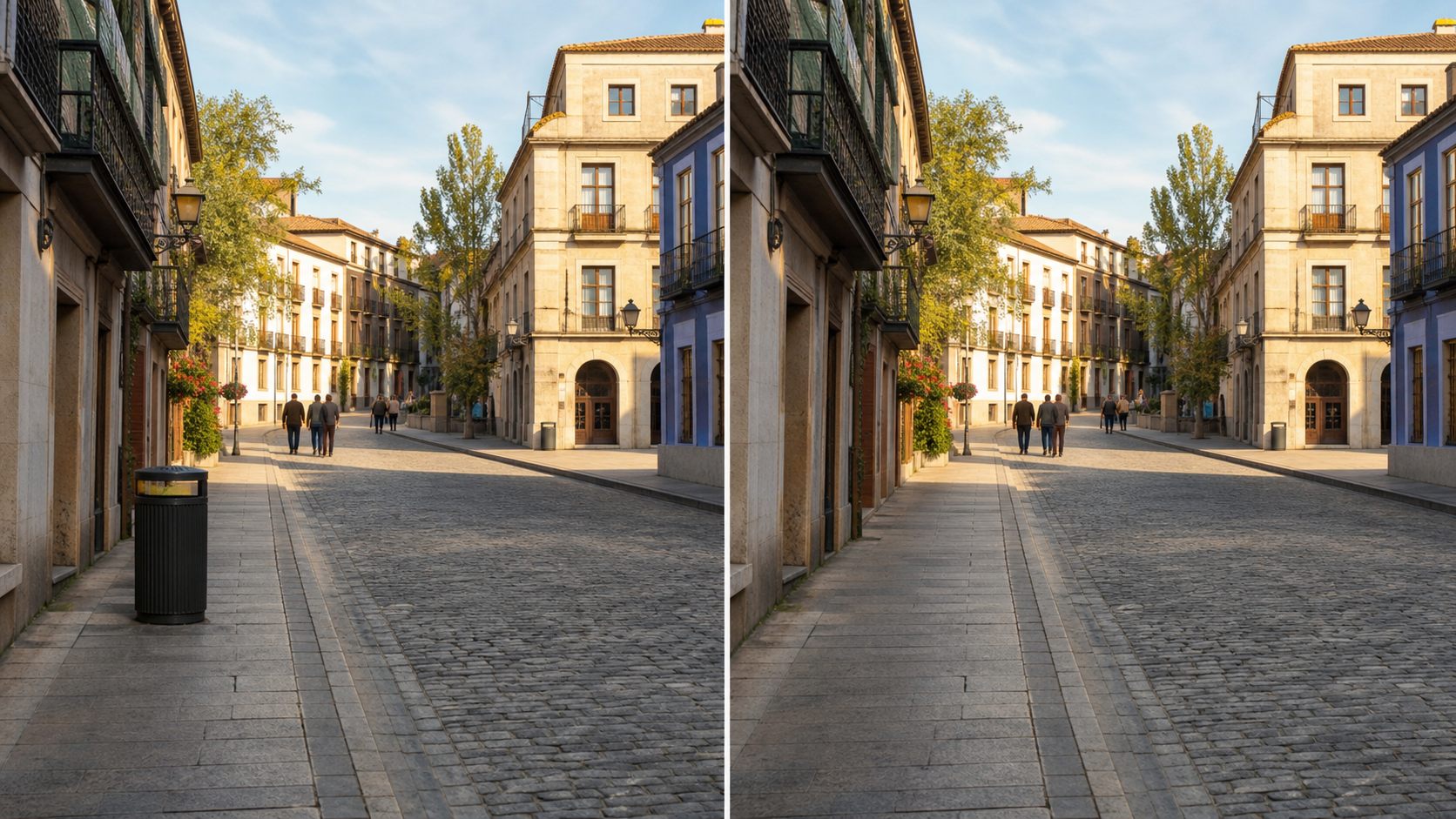
This guide focuses on practical object cleanup for travel photos, social posts, real estate previews, and marketplace images where small distractions pull attention away from the subject.
Key takeaways
- Start with the highest-quality original image you can (not a screenshot) so the AI has detail to rebuild the background.
- Remove one object cluster at a time instead of selecting half the image in one pass.
- Expect the hardest cases when the object crosses edges: text, rails, window frames, faces, hands, jewelry, or repeated patterns.
- If the edit affects a buyer, renter, or important decision, keep changes conservative and disclose material edits when appropriate.
- ClearCrowds fits when you want a fast online workflow that includes object-cleanup presets plus a prompt-based fallback.
What "remove an object from a photo online" means
Removing an object from a photo online means erasing an unwanted item and reconstructing the hidden pixels behind it so the image remains consistent in perspective, texture, lighting, and meaning.
Object removal is not only “deleting.” The tool must infer what should be behind the object: floor seams, brick texture, wallpaper pattern, grass, sky, reflections, or shadows. That’s why AI cleanup tools are useful for everyday photos.
The goal is simple: keep the scene believable, remove distractions, and avoid turning the image into something that misrepresents what matters.
When object removal is appropriate (and when it isn’t)
| Scenario | Good use | Risk to avoid |
|---|---|---|
| Travel photo | Remove a trash can, cone, sign, or cable from your own photo | Editing to support a false claim about access, safety, or exclusivity |
| Social photo | Remove a random background distraction or sticker overlay you added | Editing someone else’s photo without permission |
| Real estate / rental preview | Remove temporary clutter (loose items, small mess) to show a cleaner view | Hiding permanent damage, structural issues, blocked views, or safety hazards |
| Marketplace / ecommerce listing | Remove a background prop or unwanted reflection to make the product clearer | Hiding defects or changing what the buyer would reasonably expect |
| Documentation / evidence | Minor cleanup for personal organization only | Altering legal, journalistic, medical, or safety-critical evidence |
If your edit changes what someone would reasonably believe about a property, product, or event, treat it as a material change.
How to remove objects from photos online
Use a “select then rebuild” workflow. It works better than asking the AI to guess what you meant.
- Upload the original image to your online editor.
- Zoom in until the object edges are clear.
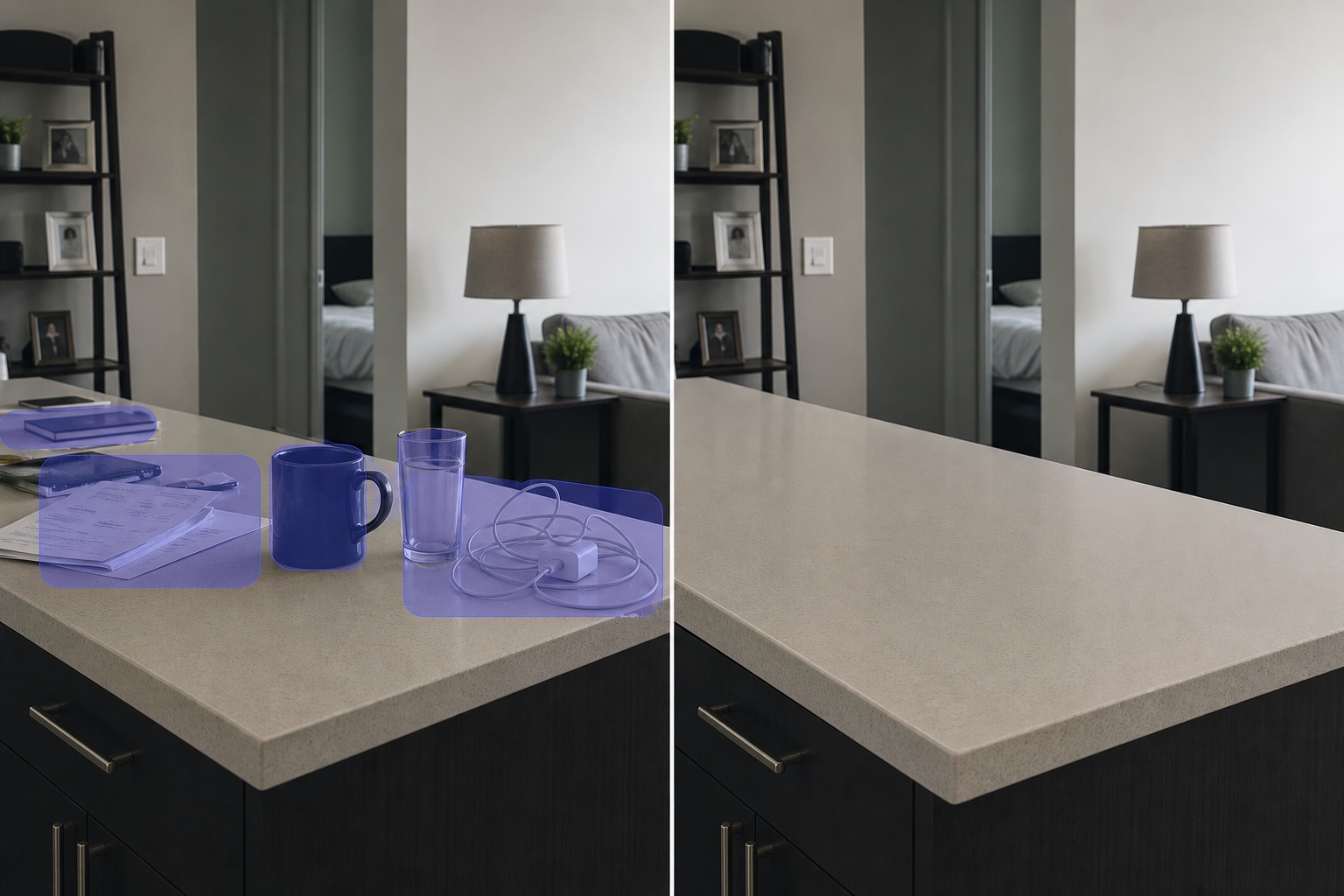
- Select only the object you want removed, plus a small margin around shadows and reflections.
- Run the cleanup once and review at 100 percent zoom.
- If the result looks warped, undo and select a smaller area.
- Repeat for the next object cluster instead of removing everything at once.
- Export after checking the full image and the exact crop you will share.
A quick decision table: what to remove first
| Object type | Typical difficulty | Why | Best first move |
|---|---|---|---|
| Small clutter (cups, papers, bags) | Easy–Medium | Background is often simple and continuous | Select one item at a time |
| Wires / cables | Medium–Hard | Long thin lines cross edges and textures | Break into segments, remove in passes |
| Signs / billboards | Medium | Contains hard edges and often text | Remove border first, then center |
| Stickers / overlays | Easy–Medium | Often flat but can cover detailed areas | Start with small selection, expand if needed |
| Reflections / glass glare | Hard | Complex lighting + transparency | Keep expectations conservative, test smaller edits |
What makes an object-removal result look natural
A clean result usually passes four checks:
- Line continuity: tiles, rails, floor seams, and building edges should stay straight.
- Texture consistency: brick, fabric, grass, and wood grain should not look smeared or repeated.
- Lighting & shadow match: the rebuilt area should match brightness and color temperature.
- No duplicated artifacts: watch for repeated stones, cloned leaves, stretched patterns, or “melted” edges.
If one area fails, redo that spot with a smaller selection and more context.
Object removal vs people removal vs decluttering
| Task | What you remove | Best when | Better article to read |
|---|---|---|---|
| Object removal | Clutter, signs, wires, trash, props | The distraction is not a person | This guide |
| People removal | Passersby, photobombers, background figures | The background should remain the same | Remove people from a photo online |
| Crowd removal | Many people across the scene | You want a cleaner travel or event frame | Remove crowds with AI |
| Real estate cleanup | Temporary mess and visual distractions | You want a clearer room preview | Real estate photo cleanup |
Where ClearCrowds fits
ClearCrowds is designed for “one photo, one clear goal” workflows: remove a wire, clean a room photo, remove background clutter, or refine a result with a plain-language prompt.
For object removal, a practical ClearCrowds path is:
- Open a removal preset that matches your object type, then start with a small selection.
- Review the result at full zoom and fix the hardest edge intersections first.
- If the object is unusual (or crosses complex patterns), switch to a prompt-based edit and describe the desired background (for example, “continue the same wall texture”).
Try starting from the closest preset, then iterate:
Ethical use note
Object removal is best for cleanup and clarity in images you own or have permission to edit. Avoid using it to create deceptive commercial claims, hide property damage or safety issues, alter identity documents, or manipulate evidence. When the edit could change a viewer’s decision, keep it conservative and disclose material changes.
Frequently Asked Questions
Can I remove objects from a photo for free?
Many online tools offer free trials or limited exports. The more important question is quality: zoom in and check lines, textures, and shadows before you share the result.
What is the hardest object to remove cleanly?
Thin objects that cross edges (wires, rails) and objects that cover repeated patterns (tiles, brick, windows) are usually the hardest. Removing them in small segments often looks more natural.
Will AI object removal look fake?
It can if you remove too much at once or if the background has important structure. Smaller selections, multiple passes, and careful review at 100 percent zoom improve the odds of a believable edit.
Is it okay to remove objects from real estate photos?
It can be okay for temporary clutter cleanup and privacy, but it should not misrepresent the property. Do not hide damage, safety hazards, blocked views, or permanent issues. If the edit could influence a decision, keep it conservative and disclose material changes when appropriate.
Summary
Removing objects from photos online works best when you use a selection-first workflow, remove one cluster at a time, and review the result at full zoom. For travel, social, listing, and marketplace images, AI cleanup can produce a cleaner version of the same moment—as long as you keep the scene believable and use object removal ethically.