
Remove People From a Photo Online: A Practical AI Cleanup Guide
Try this task in ClearCrowds
Remove people from your photo in one click
Send visitors straight from the guide into the people remover preset so they can upload and clean the scene immediately.
- Background rebuild
- Subject-safe prompt
- Fast upload flow
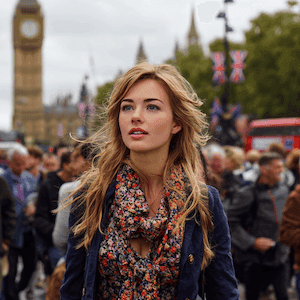
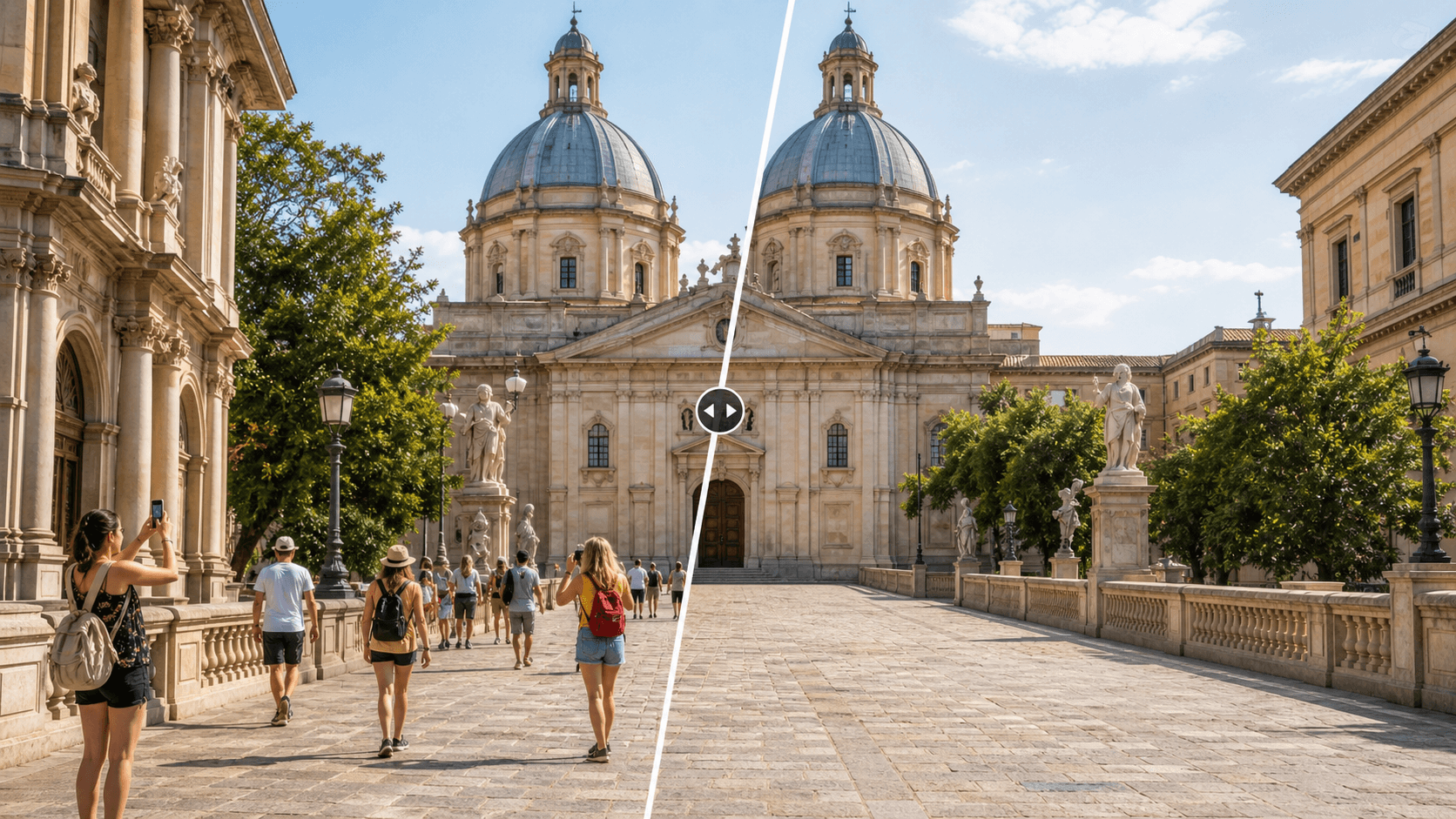
To remove people from a photo online, upload an image you own or have permission to edit, mark the background people or photobombers you want gone, and let an AI cleanup tool rebuild the missing scene. The best result looks like a clean version of the original moment, not a heavily manipulated picture.
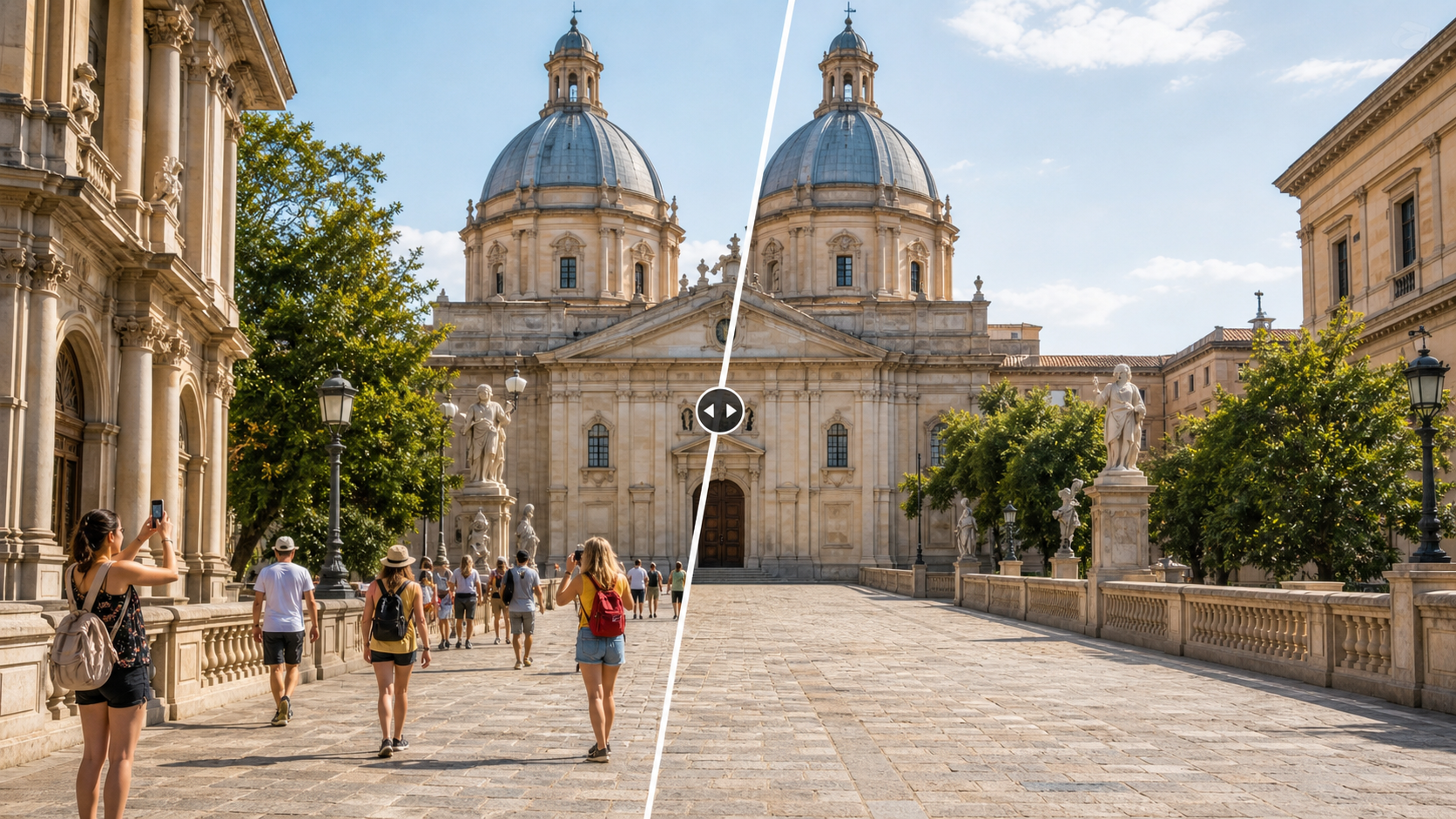
This guide focuses on practical people removal for travel photos, social posts, real estate previews, marketplace images, and everyday photos where a few background distractions are pulling attention away from the subject.
Key takeaways
- Use people removal for owned or permissioned photos, not for identity fraud, misleading evidence, or deceptive commercial claims.
- The easiest photos to clean have clear background detail, small background people, and good lighting.
- AI tools work best when you remove one cluster at a time instead of painting over the whole image.
- Always inspect edges, shadows, repeated patterns, and rebuilt architecture before exporting.
- ClearCrowds fits when you want a fast online workflow without learning clone stamps, masks, or generative-fill settings.
What "remove people from a photo online" means
Removing people from a photo online means using a browser-based editor to erase unwanted background people from an image and reconstruct the hidden area so the final photo still looks natural, consistent, and truthful.
Good people removal is not just deleting pixels. The editor needs to understand what should appear behind the person: pavement, grass, wall texture, water, furniture, sky, or a repeating pattern. That is why AI cleanup tools are useful. They can infer missing background detail faster than a manual editor can clone it from nearby areas.
The goal is simple: keep the photo's real subject and scene, remove distractions, and avoid turning the image into something that misrepresents what matters.
When people removal is appropriate
| Scenario | Good use | Risk to avoid |
|---|---|---|
| Travel photo | Remove tourists in the far background of your own vacation shot | Making a location look private, empty, or exclusive when that claim matters |
| Social profile or family photo | Remove a passerby or photobomber behind the main subject | Editing someone out to misrepresent an event or relationship |
| Real estate or rental preview | Remove temporary clutter, reflections, or accidental background people | Hiding permanent damage, blocked views, safety issues, or actual property conditions |
| Ecommerce or marketplace image | Remove a person, hand, hanger, or background distraction from a product shot | Misrepresenting product size, condition, included accessories, or authenticity |
| Event photo | Clean background distractions in a permissioned image | Altering documentary, legal, journalistic, or public-interest evidence |
If the edited image will influence a purchase, rental decision, legal decision, or news claim, keep the edit conservative and disclose material changes when needed.
How to remove people from a photo online
Start with the original photo whenever possible. Screenshots, compressed messenger images, and heavily filtered copies give the AI less detail to rebuild.
- Upload the photo to your online cleanup editor.
- Zoom in before selecting anything. People who look small on the full image may cover detailed edges.
- Mark only the people or objects you want removed. Leave a small margin around limbs, bags, shadows, and reflections.
- Run the cleanup once, then inspect the result at 100 percent zoom.
- If the background looks warped, undo and select a smaller area.
- Repeat for the next cluster instead of removing every person in one pass.
- Export only after checking the full image and the crop you plan to post.
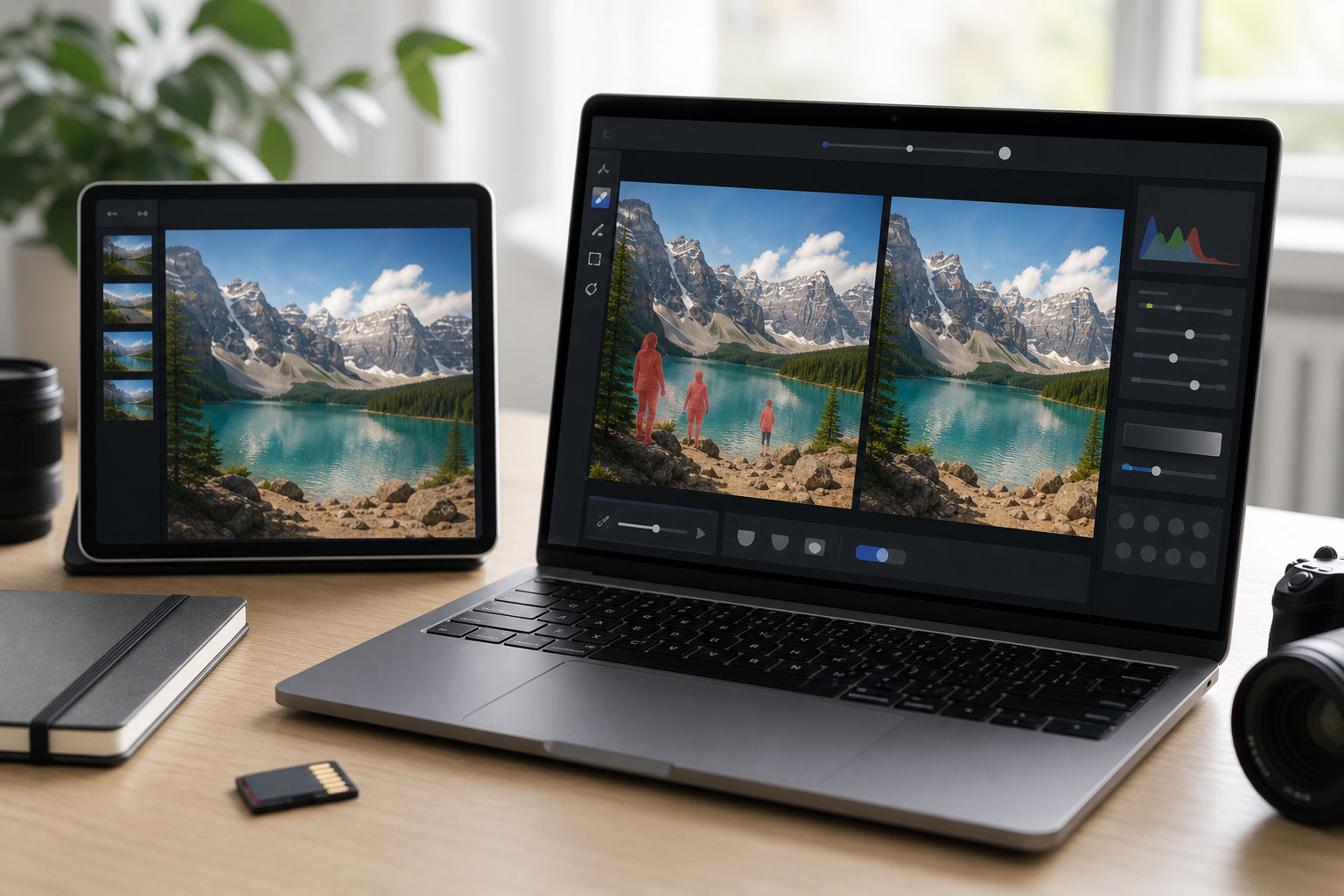
The most common mistake is selecting too much at once. A large painted area gives the AI less context, especially in places with railings, brick, tiles, repeating windows, reflections, or textural patterns. Smaller passes usually create cleaner edits.
What makes an AI people-removal result look natural
A natural edit should pass four checks:
- Background continuity: lines, tiles, walls, water, and roads should continue in the same direction.
- Lighting consistency: the rebuilt area should match the photo's brightness, shadows, and color temperature.
- Edge quality: hair, clothing edges, furniture, and architecture near the removed person should not look melted.
- No repeated artifacts: watch for copied stones, duplicated tree leaves, stretched pavement, or cloned window shapes.
For travel images, look closely at stairs, fences, statues, signs, and landmark details. For real estate photos, check baseboards, cabinet lines, flooring seams, mirrors, and windows. For ecommerce images, inspect the product outline and any surface shadow.
People removal vs object removal vs background removal
| Task | What you remove | Best when | Better article to read |
|---|---|---|---|
| People removal | Tourists, passersby, photobombers, accidental background figures | The main subject and background should stay the same | This guide |
| Crowd removal | Many people across a travel or event photo | You need a clean scenic image from a crowded place | Remove crowds with AI |
| Object cleanup | Bags, signs, wires, trash, props, clutter | The distraction is not a person | AI image editor with prompt |
| Ecommerce cleanup | Props, hands, background clutter, inconsistent surfaces | The product should be clearer for listings | Ecommerce photo editing |
| Sticker or caption cleanup | Stickers, emojis, overlays, captions | You own the image and want a cleaner social photo | Remove stickers and emojis |
These tasks overlap, but the selection strategy changes. People often include shadows, reflections, hair, bags, and body edges. Object cleanup is usually easier when the item has a hard outline. Background removal changes the whole scene, while people removal tries to preserve it.
Where ClearCrowds fits
ClearCrowds is designed for people who want a direct photo cleanup result without opening a professional editing suite. You can use it when your goal is specific: remove a passerby from a travel image, clean a room photo, remove a distracting object, or edit with a plain-language prompt.
For people removal, the practical workflow is:
- Upload the original image.
- Choose a cleanup workflow or describe what should disappear.
- Review the generated result against the original.
- Run a second smaller cleanup pass if one area needs refinement.
- Export the version that keeps the scene believable.
ClearCrowds is especially useful when the unwanted person is not the main subject and the background has enough visual information for AI reconstruction. If the person covers a complex face, readable sign, detailed architecture, or important property condition, keep expectations conservative and review the edit carefully.
Ethical use note
People removal should protect the quality, privacy, and clarity of your own images. It should not be used to create false evidence, erase someone from a sensitive record, misrepresent a property, alter identity documents, hide product defects, or publish a misleading commercial image.
When in doubt, ask whether the edit changes the factual meaning of the photo. If it only removes a random background distraction, it is usually a cleanup edit. If it changes what a buyer, renter, viewer, or decision-maker would believe, treat it as a material edit.
Frequently Asked Questions
Can I remove a person from a photo for free?
Many online editors offer a free trial or limited free exports. The real question is whether the final image is clean enough to use. Check for warped lines, copied textures, and strange shadows before posting.
Is AI better than Photoshop for removing people?
AI is faster for most casual cleanup tasks. Photoshop still gives more manual control when the background is complex or the image must be retouched professionally. For everyday travel, social, and listing previews, an AI cleanup workflow is usually the faster starting point.
What photos are hardest to fix?
Photos are harder when the person covers detailed architecture, text, faces, hands, reflections, patterned floors, fences, or mirrors. Low-resolution images are also harder because the AI has less detail to infer.
Can I remove a crowd instead of one person?
Yes, but crowd removal works best in stages. Remove the largest foreground distractions first, inspect the rebuilt background, then continue with smaller groups. If the entire scene is blocked, no tool can perfectly recover details that are not visible.
Should I disclose people removal?
For casual personal photos, disclosure is usually not necessary. For real estate, ecommerce, journalism, legal, or documentary contexts, disclose edits that could change how someone understands the scene.
Summary
The best way to remove people from a photo online is to work from an original image, select only the unwanted background people, run AI cleanup in small passes, and inspect the final result for natural background detail. ClearCrowds gives you a simple workflow for this kind of cleanup while keeping the focus on honest, permissioned photo editing.